
Written by: Dariy Bek
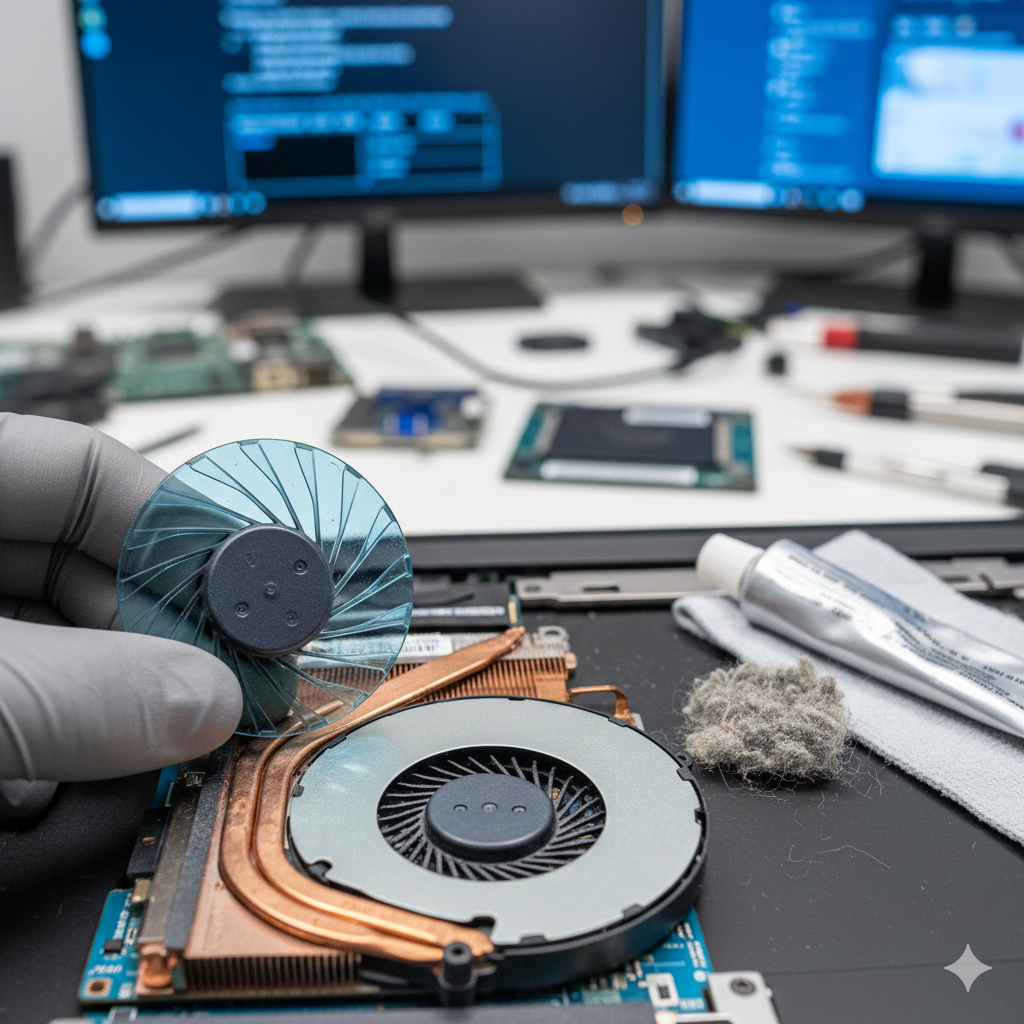
We’ve all been there. You’re working on an important project or settling into a movie when your laptop suddenly sounds like it’s preparing for takeoff. That whirring, grinding, or clicking noise isn’t just annoying—it’s a cry for help from your hardware.
As repair specialists at Hot Tech Repair, we’ve seen thousands of devices in our Sacramento, CA shop. Most users fear their motherboard is dying, but the reality is often simpler (though no less urgent). Because your laptop’s cooling system is vital to preventing permanent hardware damage, diagnosing this issue quickly is a “Your Money or Your Life” (YMYL) technical priority. Ignoring a fan failure can lead to data loss or a fried processor.
In this guide, we’ll walk you through the diagnostic steps to identify whether your fan issues are born from messy software or failing bearings.
Section 1: The Anatomy of Laptop Cooling
To understand the noise, you first need to understand the mission. Your laptop generates heat—specifically at the CPU (Central Processing Unit) and GPU (Graphics Processing Unit).
How the Cooling Loop Works
- Heat Sinks: Conductive metal pipes pull heat away from the chips.
- The Fan: Draws cool air in and pushes hot air out through the vents.
- Thermal Paste: A compound that ensures a perfect seal between the chip and the sink.
According to research from the IEEE Xplore Digital Library, thermal throttling occurs when these components fail, reducing your laptop’s performance by up to 50% to prevent a meltdown. If your fan is loud, it’s either working too hard (Software) or it’s physically broken (Mechanical).
Section 2: Is it a Software Glitch? (The “Overworked” Fan)
Sometimes, the fan is loud because it is doing exactly what it was programmed to do: spin at maximum RPM to save your hardware.
High CPU Usage
If a background process—like a runaway Windows Update or a heavy browser tab—is hogging 90% of your CPU, the heat spikes.
- The Sound: A consistent, high-pitched “whoosh” of air. No rattling or clicking.
- The Fix: Open your Task Manager (Ctrl+Shift+Esc) and see what’s eating your resources.
Malware and “Crypto-Jacking”
Malware can hide in your system and use your hardware to mine cryptocurrency, causing the fan to run 24/7. This is why staying updated on security is vital. If you suspect a virus is causing the heat, it might be time to Repair a Device by getting a professional software deep-clean.
Section 3: Is it a Mechanical Failure? (The “Broken” Fan)
If the noise sounds “unnatural,” software isn’t the culprit. Mechanical failures are physical issues that require a hands-on fix.
Common Mechanical Symptoms
- Grinding or Rattling: This usually indicates a worn-out bearing. The fan isn’t spinning level anymore.
- Clicking: There might be a piece of debris (or a loose wire) hitting the blades.
- The “Death Silence”: If your laptop is burning hot but the fan isn’t moving at all, the motor has seized.
The Dust Factor
Dust is the silent killer. Over years, it builds up into a “carpet” that blocks the exhaust vents. When the air can’t escape, the fan spins faster and faster to compensate, eventually burning out the motor.
Section 4: Practical DIY Troubleshooting
Before you panic, try these steps to narrow down the cause:
- The Hard Surface Test: Always use your laptop on a flat, hard surface. Using it on a bed or carpet chokes the intake vents.
- Compressed Air: Use a can of compressed air to blow out the vents. Pro Tip: Do this while the laptop is off, and use short bursts.
- Update Your BIOS: Manufacturers often release BIOS updates that optimize fan curves (how fast the fan spins at certain temperatures).
- Check for Obstructions: If you hear a click, look into the vent with a flashlight. You might see a stray hair or crumb.
If these steps don’t lower the decibels, you likely need a hardware replacement. You can check our Gallery to see examples of the “dust bunnies” we’ve extracted from local Sacramento laptops!
Section 5: When to See a Professional
Repairing a laptop fan often requires a full teardown of the device. Unlike desktops, laptop fans are often tucked under the motherboard or heat pipes. One slip of a screwdriver can turn a $50 fan repair into a $500 motherboard replacement.
If you are in the Sacramento area and your laptop is screaming, don’t wait until it shuts down forever. Get an Instant Quote from our team to see how affordable a professional cleaning and fan replacement can be.
FAQs
Q: Can I just oil my laptop fan?
A: We don’t recommend it. Modern laptop fans are typically “sleeve bearing” or “fluid dynamic” and are meant to be replaced, not lubricated. Adding oil can actually attract more dust and cause a fire hazard.
Q: Will a cooling pad help a loud fan?
A: It’s a band-aid, not a cure. A cooling pad helps lower the surface temperature, but if the internal fan is failing or the vents are clogged, the core components will still overheat.
Disclaimer: The information provided in this post is for educational purposes. Attempting to open or repair your laptop can void your warranty and carries a risk of electrical shock or hardware damage. If you are unsure, please consult a professional.