
Written by: Dariy Bek
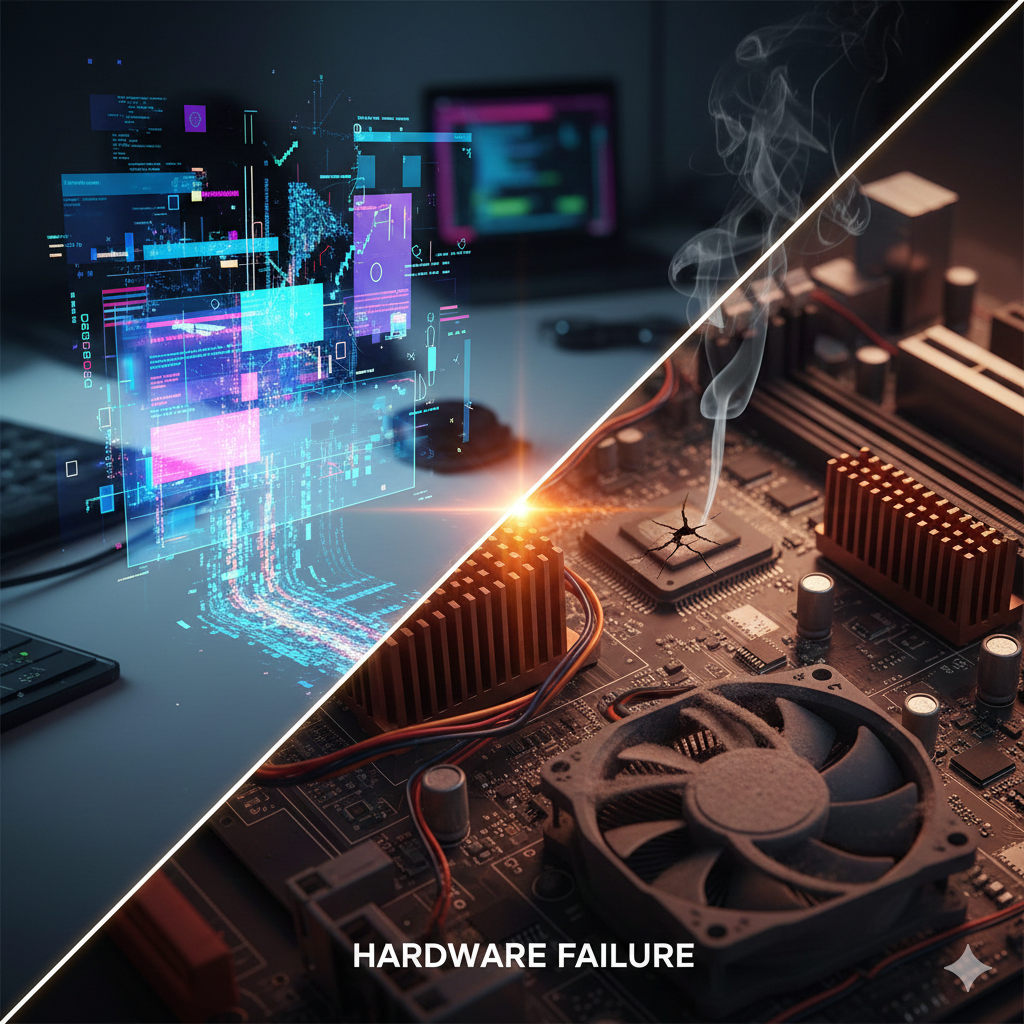
We’ve all been there: you’re in the middle of an important project or a heated gaming session, and suddenly, the screen freezes, or the entire system reboots without warning. The immediate panic sets in—is my computer dying? Do I need to buy a whole new laptop, or did a Windows update just go sideways?
In the world of tech repair, misdiagnosing the problem is the fastest way to waste money. Identifying whether you’re dealing with a software glitch (a logical error in code) or a hardware failure (a physical breakdown of components) is the first step toward a solution.
As a team of experienced technicians at Hot Tech Repair, we’ve seen thousands of devices in Sacramento. We know that while the symptoms often look the same—blue screens, lag, or crashes—the “cure” is vastly different. This guide is designed to help you navigate these digital headaches with the expertise of a professional, ensuring you don’t pay for a new motherboard when all you needed was a driver update.
Section 1: The Core Definitions
What is a Software Glitch?
A software glitch is a “logical” issue. Think of your computer like a chef following a recipe. The kitchen (the hardware) is perfectly fine, but the recipe (the software) has a typo that tells the chef to add a gallon of salt instead of a teaspoon. The result is a disaster, but the stove isn’t broken.
Common causes include:
- Incompatible background applications.
- Corrupted system files or “bugs” in the operating system.
- Outdated or conflicting drivers.
- Malware or virus interference.
What is Hardware Failure?
Hardware failure is a physical problem. This is when the “stove” actually breaks. No matter how perfect the recipe is, the meal won’t cook if the heating element is burnt out.
Common physical culprits:
- Hard Drive/SSD: Physical sectors wearing out.
- RAM: Memory chips failing to hold data.
- GPU/CPU: Overheating or aging of the processors.
- Power Supply: Inconsistent voltage causing shutdowns.
Section 2: How to Tell Them Apart (The Symptom Checklist)
To help you narrow it down, we’ve broken down the most common red flags. If you’re unsure, you can always get an instant quote to see what a professional fix might cost.
1. The “Blue Screen of Death” (BSOD)
- Software: If the BSOD happens only when you open a specific app (like Photoshop or a game), it’s likely a software conflict or a driver issue.
- Hardware: If the BSOD happens randomly, even when the computer is sitting idle, it often points to failing RAM or a dying hard drive.
2. Weird Noises
- Software: Software is silent. If your computer is making clicking, grinding, or loud whirring sounds, it is 100% hardware.
- Hardware: A clicking sound usually means a mechanical Hard Drive is failing. A loud whirring usually means a cooling fan is clogged or dying, leading to overheating.
3. Graphical Artifacts (Lines on Screen)
- Software: If lines or weird colors appear only in one program, it’s a software bug.
- Hardware: If you see “snow,” flickering lines, or distorted blocks of color the moment you turn the computer on (even on the logo screen), your Graphics Card (GPU) is likely failing.
4. The “Heat” Factor
If your laptop gets scorching hot and then shuts down, that is a physical hardware limitation. However, the reason might be software (a rogue program using 100% of your CPU).
Section 3: Practical Steps to Troubleshooting
Before you rush to our Sacramento location, try these “Triage” steps to see if you can fix it at home.
Step 1: The “Safe Mode” Test
Boot your computer in Safe Mode. This runs the computer with only the bare essentials.
- If the problem disappears: It’s a software issue (likely a 3rd party app or driver).
- If the problem persists: It’s almost certainly a hardware failure.
Step 2: Check for Updates
Sometimes, Microsoft or Apple releases a “patch” for known glitches. Ensure your OS and drivers are current. According to Microsoft’s Official Support Documentation, keeping drivers updated is the #1 way to prevent system instability.
Step 3: Listen and Feel
Open your laptop or PC case (if comfortable). Use a can of compressed air to blow out dust. If the crashing stops, you just solved a hardware overheating issue with a $5 can of air!
Section 4: When to Call the Pros
Some things shouldn’t be DIY. If you suspect your power supply is failing or your screen is physically cracked, attempting a home repair can be dangerous or lead to further damage.
At Hot Tech Repair, we pride ourselves on transparency. Whether you need to repair a device or just want to see our previous work in our gallery, we are here to help the Sacramento community stay connected.
Expert Tip: Always back up your data before troubleshooting. If a hardware failure is imminent, the stress of testing can sometimes be the final “push” that kills a hard drive.
FAQs
Q1: Can a virus look like a hardware failure?
Yes. Some malware is designed to max out your hardware usage, causing it to overheat and shut down, mimicking a physical failure. Always run a deep virus scan first.
Q2: Is it worth fixing an old laptop with hardware failure?
It depends. If the repair cost is more than 50% of the value of a new machine, we usually recommend an upgrade. You can check our about us page to learn more about our philosophy on sustainable repair.